
LinkedIn Job Search Master Guide: Find Jobs Faster with AI
Table of Contents
The “TL;DR” Job Search Checklist
Keep this checklist handy to ensure your daily search remains high-impact:
- Audit Your Profile: Ensure your profile’s keywords match the exact “Skill Clusters” your target recruiters are searching for.
- Set 3 Precise Alerts: Create one for “Dream Roles,” one for “Remote Only,” and one for “Local/Hybrid” to cover all bases.
- Clean Your Inbox: Monthly, delete old or overly broad job alerts that lead to “alert fatigue.”
- Activate “Open to Work”: Set this to “Recruiters Only” for privacy or “Public” to mobilize your entire network.
- Use the “Under 10 Applicants” Filter: Prioritize these roles to ensure your application is seen before the “AI-screening wall” gets too high.
- Track Beyond LinkedIn: Move your Saved Jobs into a dedicated tracker like Jobright’s to manage interview stages.
The job market of 2026 has officially moved beyond the “apply and hope” era. With over 1 billion members on LinkedIn and nearly 66% of recruiters now using AI-powered agents to pre-screen candidates, your search strategy needs a technical upgrade. It is no longer enough to just “be” on LinkedIn; you must be algorithmically visible.
This master guide will show you how to navigate the 2026 LinkedIn landscape, utilizing AI tools like Jobright AI to outpace the competition and land your next role in record time.
Also Read: LinkedIn AI Job Matching: The Simple Guide to Getting Noticed >
The AI Revolution in Job Hunting and Job Search
Welcome to the age of Algorithmic Visibility. In 2026, the traditional job search—scrolling through endless feeds and clicking “Easy Apply”—is a recipe for burnout.
The “Ghost Job” & Volume Crisis
The sheer volume of applications has reached an all-time high. Because AI can now generate resumes in seconds, recruiters are often buried under thousands of low-quality applications. To manage this, many companies use automated “Hiring Assistants” that filter out anyone who doesn’t hit a specific Match Score.
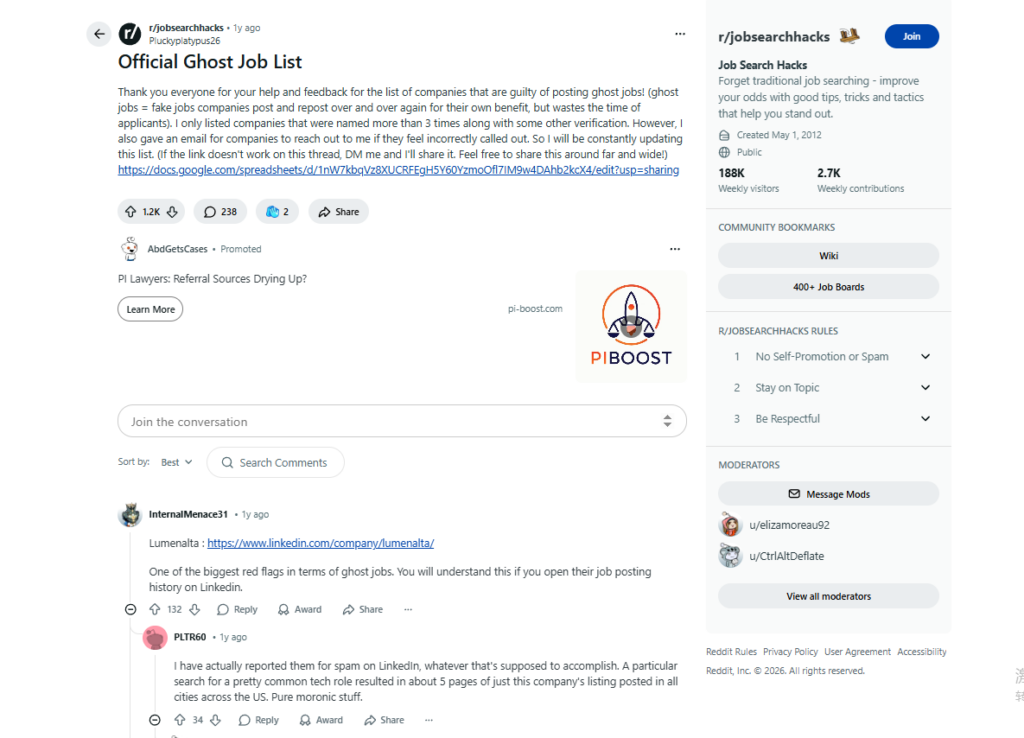
Furthermore, users on communities like r/jobsearchhacks have identified a rise in “Ghost Jobs”—postings that stay up for months but are never actually filled, used primarily for data collection or to show “growth” to investors. If your profile isn’t optimized for these algorithms, you are effectively invisible, or worse, wasting time on non-existent roles.
The Hybrid Strategy for LinkedIn Job Search
The most successful job seekers in 2026 use a two-pronged approach:
Strategy 1. LinkedIn for Discovery and Networking: Use the LinkedIn platform’s massive database to find opportunities and people.
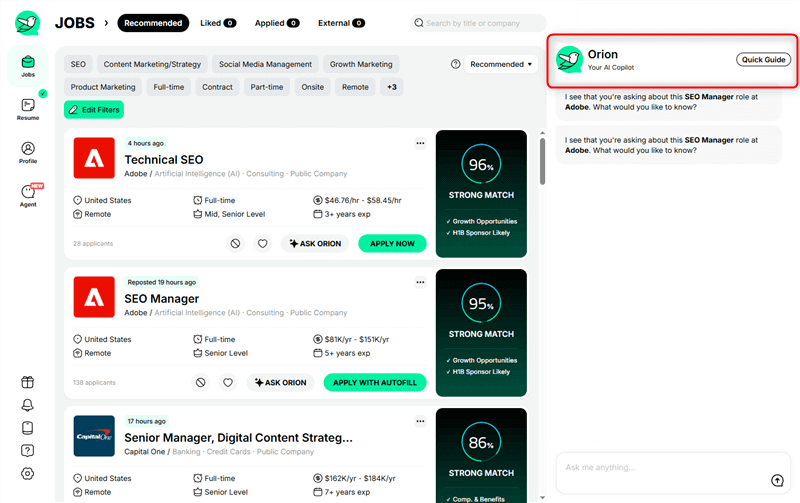
Strategy 2. Jobright.ai for Strategy and Execution: Use Jobright’s Orion AI Copilot to analyze those job descriptions, tell you exactly which keywords you’re missing, and automate the tracking process.
Expert LinkedIn Job Search Tips (2026 Edition)
Before you touch a single filter, you need to think like the algorithm. Here are three expert-level strategies to get you started.
Keyword Synergizing vs. Keyword Stuffing
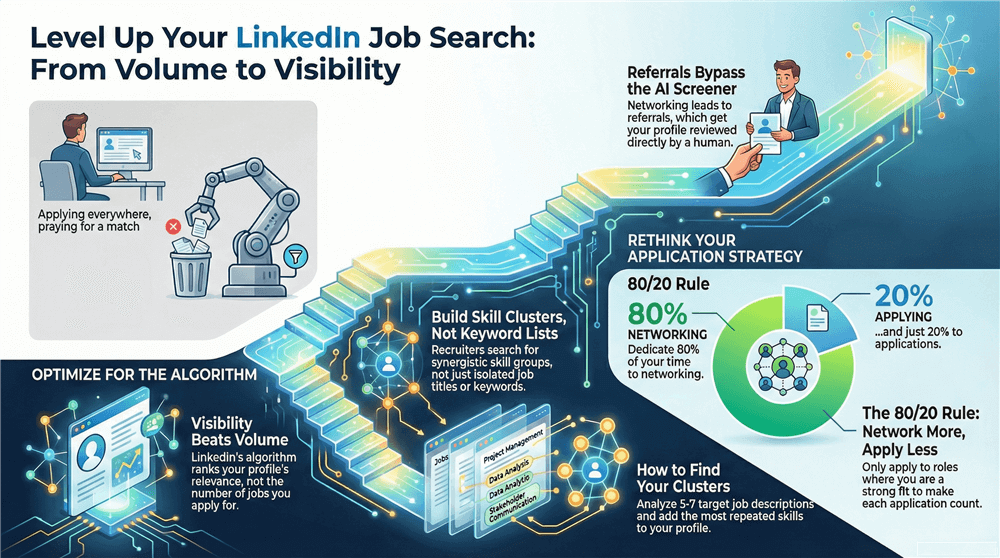
Recruiters no longer search for single job titles like “Marketing Manager.”Instead, they search for skill clusters—groups of complementary capabilities that define how the role actually functions.
For example, a modern marketing role may be surfaced by a cluster such as:
Generative AI Implementation + Data Visualization + Lifecycle Marketing
How to apply this strategy:
- Open 5–7 job descriptions for your target role.
- Highlight recurring skills, tools, and responsibilities.
- Identify overlapping phrases and group them into 2–3 clear skill clusters.
- Update your Skills, About, and Experience sections using these exact phrases—naturally, not repetitively.
This approach boosts relevance signals for LinkedIn’s ranking algorithm without triggering keyword-stuffing penalties.
The 80/20 Networking Rule
Spend 20% of your time applying and 80% of your time networking.
In 2026, a referral or warm introduction remains the only reliable way to guarantee that a human—not just an AI screening agent—reviews your profile.
- Referrals bypass early-stage algorithmic filtering
- Recruiter DMs and event follow-ups re-rank your profile manually
- Social proof increases trust signals in internal ATS systems
Community discussions on platforms like r/cscareerquestions on Reddit consistently show that candidates who applied first and then followed up via a recruiter conversation, event, or direct message had a significantly higher “move-to-top” rate than those relying solely on online applications.
Strategic Search Narrowing (Quality Over Volume)
LinkedIn’s native job search is intentionally broad. The mistake most candidates make is applying too widely.
Instead:
- Only apply to roles where 70–80% of the required skills already appear on your profile
- Customize your profile slightly (not your resume) to mirror the role’s core skill cluster
- Treat each application as an investment of time, not a numbers game
How to Search for Internships on LinkedIn
For students and career changers, finding an internship in 2026 requires navigating a very crowded field.
The “Double Filter” Method
Often, companies mislabel internships as “Entry Level.” To find every opportunity, go to the Experience Level filter and check both “Internship” and “Entry Level.” ### Boolean Search for Students
Don’t rely on the search bar’s basic suggestions. Use Boolean logic to find “hidden” internships:
(Intern OR Co-op OR “Summer Analyst”) AND (Python OR SQL) NOT Graduate
This string ensures you find roles specifically for current students while excluding full-time graduate roles you might not be eligible for yet.
Skill Assessments & Verification
LinkedIn’s Skill Assessments are more important than ever. If you pass an assessment in Excel, Coding, or Project Management, you get a “Verified” badge. Recruiter search tools (LinkedIn Recruiter) have a specific filter to show only verified candidates. Completing these is a fast track to the top of the pile.
How to Find Remote Jobs on LinkedIn
Internship searches focus on early-career access. Remote job searches, on the other hand, introduce a completely different challenge: global competition.
By 2026, remote work is no longer a perk—it’s a borderless talent market. You’re not just competing with candidates in your city or country; you’re competing with professionals worldwide. That makes search precision even more critical.
The Location Trick
When searching for remote jobs, many people leave the location blank. Don’t do this. In the location box, type “Remote” directly. Then, go to the “On-site/Remote” filter and select “Remote.” This “double-tags” your search to catch postings that were listed incorrectly by HR.
- The “NOT” Operator Hack: Many users on r/jobsearchhacks complain about “spam” remote companies that repost the same 4 roles every week. You can filter these out in the search bar:
[Job Title] NOT “Crossover” NOT “Lumenalta”
This ensures your results are fresh and from unique companies.
Mastering Job Alerts: Stay Ahead of the AI
Speed is the primary currency of a 2026 job search. If you apply 48 hours after a posting, you might already be candidate #500.
How to Create Precise Job Alerts
- Run a specific search: Use all your filters (Salary, Remote, Industry).
- Toggle the “Set Alert” switch: This is usually at the top left of your search results.
- Frequency Settings: Set “Daily” for your high-priority dream companies and “Weekly” for broader “industry watch” alerts.
How to Stop LinkedIn Job Alerts (Full Instructions)
As promised, here is the full breakdown to include in your guide to help users combat “Alert Fatigue.”
On Desktop (Browser)
Step 1: Click the Jobs icon at the top of your LinkedIn homepage.
Step 2: On the left-hand sidebar, click Manage job alerts (or go to Preferences → Job Alerts).
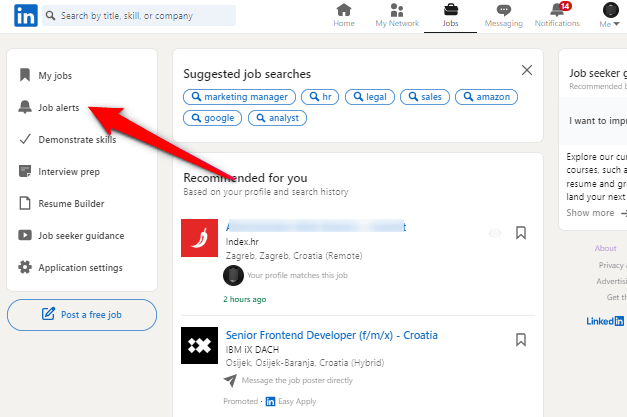
Step 3: You’ll see a list of all your active job search alerts.
Step 4: Choose an action
- Pause an alert: Toggle the switch Off
- Delete an alert: Click the Trash Can icon
- Edit an alert: Click the Pencil icon to adjust frequency (e.g., change from Daily to Weekly instead of stopping it)
On Mobile (iOS & Android)
Step 1: Tap the Jobs (Briefcase) icon in the bottom navigation bar.
Step 2: Tap the three dots (…) or your Profile icon at the top right of the search bar.
Step 3: Select Job Alerts.
Step 4: Find the job alert you want to remove.
Step 5: Tap the Pencil icon or swipe left (on iOS) to reveal the Delete option.
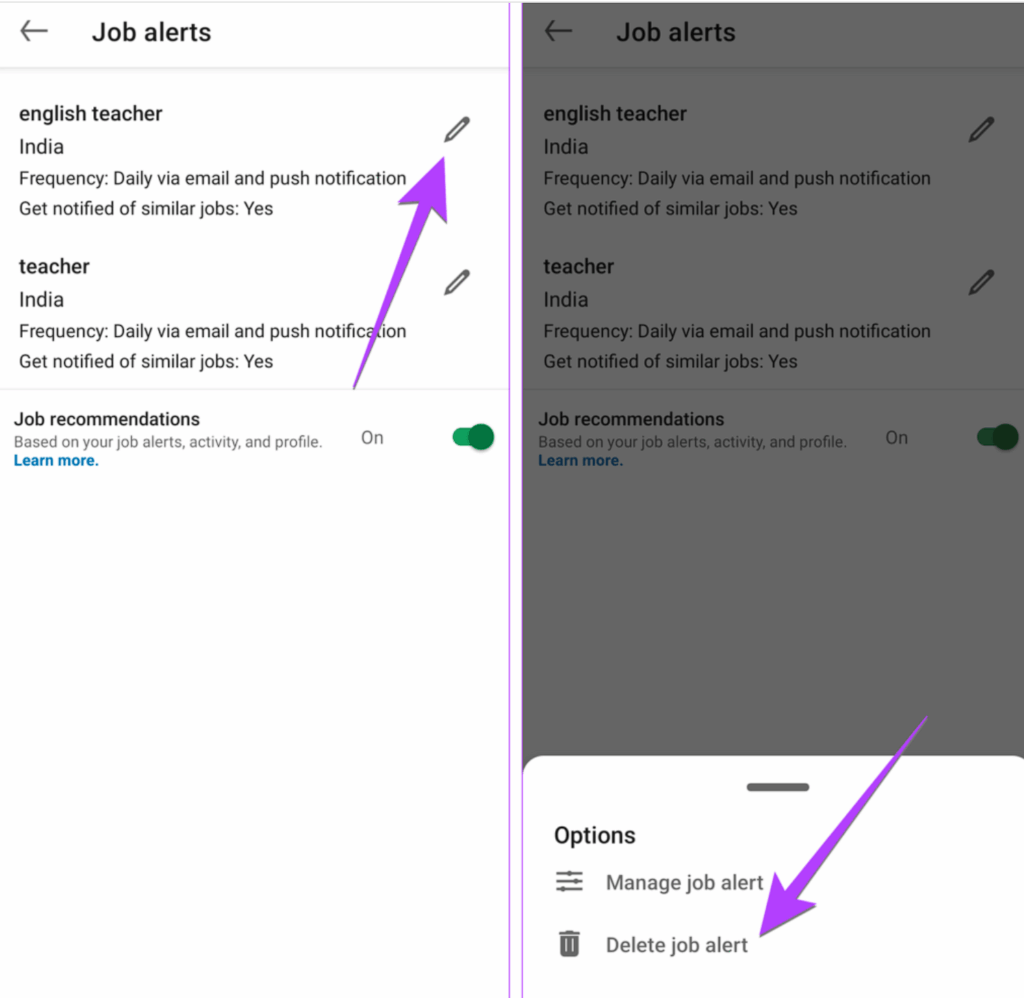
Step 6: Confirm by tapping Delete job alert.
“Open to Work”: The Strategy Behind the Banner
The green “Open to Work” banner remains one of the most polarizing features on LinkedIn. In 2026, the question is no longer whether it works—but how to use it strategically.
Why It’s Controversial
The debate around the banner intensified after a viral LinkedIn post by a recruiter—later reported by The Economic Times—criticized job seekers for displaying “Open to Work,” claiming it signals desperation rather than professionalism. The post triggered widespread backlash, with many professionals arguing that visibility should never be stigmatized in a competitive job market.
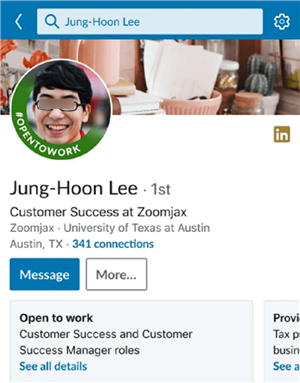
Option 1: Recruiters Only (The “Stealth” Search)
If you are currently employed, this is your best friend. It signals to anyone using the LinkedIn Recruiter platform (except those at your current company) that you are looking.
Members with this enabled see a 40% increase in recruiter InMails.
Option 2: All LinkedIn Members (The “Public” Signal)
This adds the green banner to your photo. This is best for those who have been laid off or are freelancers. It mobilizes your network—friends see the banner and think, “Oh, I should tell them about that opening at my company.”
Managing Your Pipeline: Finding Saved Jobs
Saving a job is just the first step. Many seekers “save” 100 jobs and never apply to any of them because they can’t find them later.
- On Desktop: Go to Jobs > My Jobs (left sidebar) > Saved.
- On Mobile: Tap the Jobs icon > My Jobs (usually a button near the top) > Saved.
The “Pipeline Strategy”
LinkedIn’s “Saved Jobs” list is flat. It doesn’t tell you if you’ve already reached out to the recruiter or if the deadline is tomorrow.
Comparison: Manual Search vs. AI-Powered Search
| Feature | Manual LinkedIn Search | Jobright.ai + LinkedIn |
| Search Speed | Hours of manual filtering | Instant matches based on profile |
| Relevance | High volume of “junk” roles | Filtered for your specific Match Score |
| Profile Prep | Guessing keywords | Data-backed “Skill Cluster” insights |
| Networking | Cold, generic outreach | AI-assisted personalized intros |
| Alert Management | Often leads to inbox spam | Streamlined, high-intent notifications |
| Tracking | A messy list of “Saved Jobs” | Full CRM-style interview pipeline |
How to Cut Search Time in Half with Jobright (The AI Advantage)
In a market where remote jobs receive 500+ applicants within hours, you cannot afford to apply to everything. You need to leverage Jobright.ai to act as your “Private Career Consultant.”
1. AI Match Scoring: Target the “True Fits”
Don’t waste energy on long-shot applications. Jobright’s Match Score analyzes a job description against your profile in real-time.
- The 10% Rule: Your goal is to find roles where you are in the top 10% of matches.
- Identify Gaps: If your score is low, Jobright identifies exactly which “Skill Clusters” are missing, allowing you to tweak your resume or profile before hitting “Apply.”
2. The Job Tracker: Your Personal Recruiter Dashboard
LinkedIn’s “Saved Jobs” list is where opportunities go to die. It doesn’t track deadlines or interview stages.
- The Pipeline Strategy: When you save a job on LinkedIn, immediately move it into the Jobright Job Tracker.
- Proven Results: Users have reported that this structured approach transformed their success rate from 5 interviews in two months to 8 interviews in a single month by allowing them to focus on follow-ups and active leads rather than re-searching the same boards.
Mastering Your LinkedIn “About” Section with Orion AI
Your LinkedIn summary is no longer just a biography; it is a searchable SEO database. To rank at the top of recruiter searches, you must optimize it for the keywords they actually use.
Why Use Orion AI for Your Bio?
Orion AI is trained on over 10 million job descriptions. It knows exactly which phrases recruiters type into their search bars in 2026.
The 5-Step Rewrite Process:
- Sync Data: Upload your resume to Jobright for a “Skill Gap Analysis.”
- Target a Role: Select a “Dream Job” on LinkedIn and let Orion analyze its requirements.
- Strategic Prompting: Use this prompt in the Orion AI Copilot:
“Orion, based on my resume and this [Job Title], draft a 3-paragraph LinkedIn ‘About’ section. Use a professional tone. Ensure the first two lines are a ‘hook’ about my success in [Industry]. Include a ‘Core Competencies’ list at the bottom for SEO.”
- Optimize for “The Fold”: LinkedIn cuts off your bio after three lines. Ensure your biggest metric (e.g., “Increased revenue by 20%”) is in the first 30 words.
- The SEO “Skill Dump”: Have Orion generate a “Specialties” section at the bottom. This ensures your profile is indexed for technical terms like SQL, Agile, or CRM, even if they don’t fit naturally into your narrative.
Summary
The goal of this guide isn’t just to help you find more jobs, but to help you find the right job faster. By combining the massive reach of LinkedIn with the surgical precision of Jobright.ai, you turn the job search from a game of luck into a data-driven process.
Your 3-Day Action Plan:
- Day 1: Audit your profile keywords using Jobright.ai and update your “Skills” section.
- Day 3: Activate “Open to Work” (Recruiters Only) and send 5 personalized “Curiosity Messages” to people at your dream companies.
Frequently Asked Questions
How can I make my LinkedIn profile more visible to recruiters?
In 2026, visibility is all about Skill Clusters. Ensure your “Skills” section and “About” summary contain the specific technical and soft skills recruiters search for. Using tools like Jobright.ai to audit your profile against job descriptions is the fastest way to ensure you aren’t missing high-traffic keywords.
Does the “Open to Work” green banner look desperate?
There is no consensus, but data shows that the banner increases outreach. If you are currently employed, use the “Recruiters Only” setting to stay “stealth.” If you are unemployed, the “All LinkedIn Members” banner is highly effective for mobilizing your personal network to find unlisted opportunities.
Why am I getting so many irrelevant LinkedIn job alerts?
This usually happens because your search criteria are too broad. To fix this, go to Jobs > Manage Job Alerts, delete the old alert, and create a new one using Boolean operators (e.g., Software Engineer NOT Senior). This filters out noise and prevents “alert fatigue.”
How do I find the most recent jobs on LinkedIn?
After performing a search, use the “Date Posted” filter and select “Past 24 hours.” Early applicants (especially those in the first 10) have a significantly higher chance of passing the initial AI screening before the recruiter is overwhelmed by volume.
Can I track jobs from other sites alongside LinkedIn?
LinkedIn’s built-in tracker only works for jobs on its platform. For a holistic view, use the Jobright Job Tracker. It allows you to import LinkedIn “Saved Jobs” and manage them alongside roles from company career pages or other boards in one central pipeline.