
How to Fix LockedIn AI Not Working: Setup, Permissions, and Lag Issues
Table of Contents
You’ve spent weeks optimizing your ATS resume, networking, and finally landed that high-stakes interview. You launch your AI assistant, and suddenly, you’re frantically googling “LockedIn AI not working” while the recruiter is joining the call. It’s a total nightmare. I’ve watched countless tech folks hit this exact wall, dealing with setup, permissions, and lag issues at the worst possible moment. I’m Dora, and I help candidates build bulletproof interview workflows. Instead of telling you to just “reinstall it,” I treat these failures like a real incident report. Today, I’m sharing the exact field checklist I use to isolate hidden mic blockers, fix screen detection bugs, and eliminate lag. Let’s stop guessing and look at the data to get your tool running smoothly before you go live.
One note: I’m not affiliated with LockedIn AI. I’m just sharing the same kind of field checklist I use when helping candidates reduce “random failures” in high-stakes interview prep.
Quick Checklist: Is It a Setup or System Issue?
When LockedIn AI isn’t working, most people jump straight to reinstalling. That’s often wasted effort. I start with a 2-minute isolation test.
Here’s the quick checklist I run before I touch anything else:
- Are you on the right browser + profile? If you installed the extension on one Chrome profile but you’re interviewing on another, it looks “broken.”
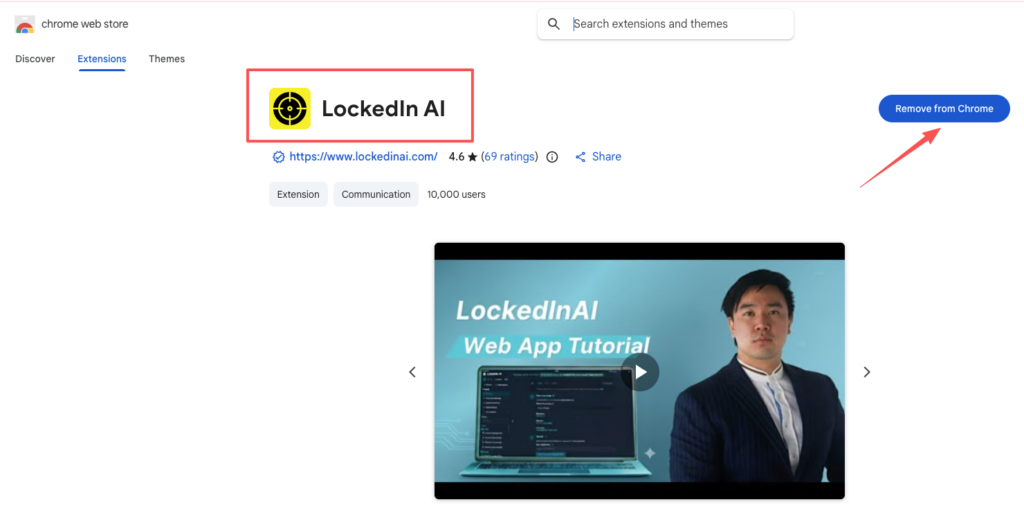
- Is the extension enabled right now? Go to your browser extensions list and confirm it’s toggled on. You can also verify directly from the LockedIn AI Chrome Web Store page.
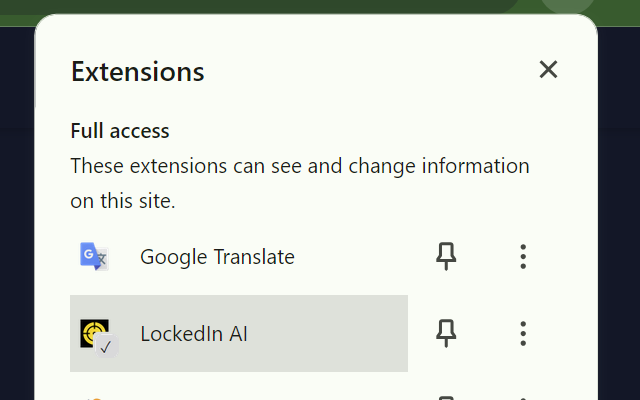
- Did the tool update recently? Extension updates can introduce temporary extension issues or permission resets.
- Is your OS blocking it? macOS and Windows both have privacy layers that silently block screen or mic access.
- Can you reproduce the issue on a different site? Test on a simple video meeting link (or any page the tool supports). If it fails everywhere, it’s system-level.
Here’s the harsh truth: if you can’t reproduce the problem consistently, you can’t fix it consistently. Track it like a bug.
My simple “bug notes” template:
- Browser + version
- OS + version
- Internet type (home wifi, office wifi, hotspot)
- Exact symptom (screen not detected, lag, mic blocked)
- When it started (after update? after new permissions prompt?)
Those notes turn panic into a repeatable AI interview tool troubleshooting process.
Permission Problems (Screen, Mic, Browser Limits)
Most “LockedIn AI not working” reports I see are actually LockedIn AI permission problems.
Screen Permission (Common “Screen Not Detected” Cause)
If you’re seeing something like LockedIn AI screen not detected, treat it like a permissions chain:
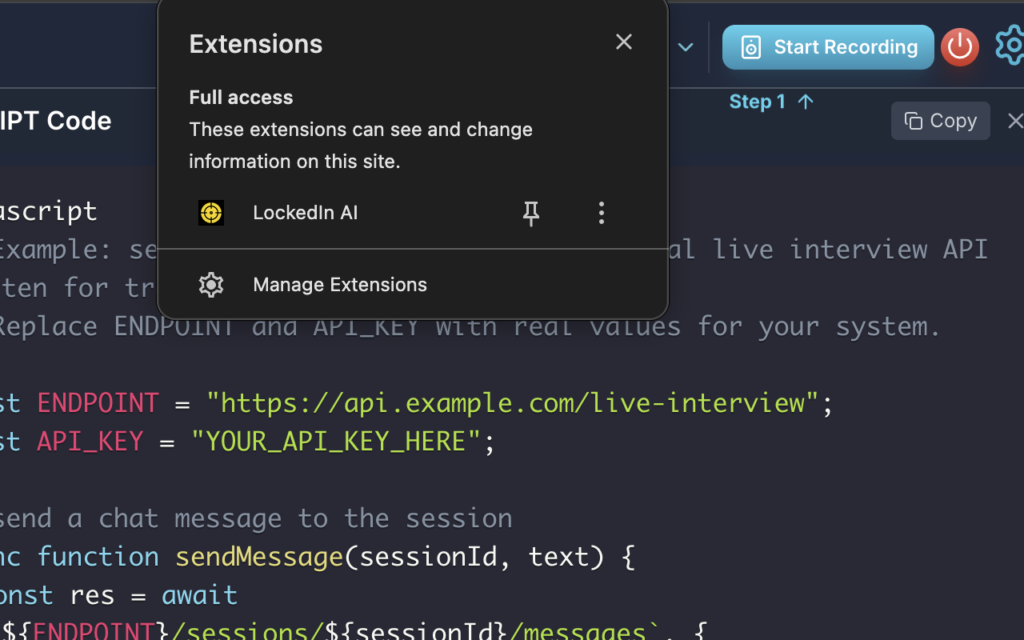
- Browser permission: the site needs screen-share permission.
- OS permission: your computer must allow the browser to record your screen.
- Extension permission: the extension may need access to the active tab or page content.
On macOS, screen recording permission is often the hidden blocker. If you’re stuck here, the official LockedIn AI audio and screen sharing troubleshooting guide walks through the exact steps.
Mic Permission (Fails Silently)
If audio-based detection is part of your workflow, mic access matters. In Chrome, check site settings for Microphone and confirm the correct input device is selected. If the tool keeps dropping mid-session, the LockedIn AI stops working FAQ covers common audio interruption causes.
Browser Limits + “Helpful” Blockers
A few things that create surprise failures:
- Incognito mode: extensions are often disabled unless you allow them.
- Ad blockers / privacy extensions: they can block scripts the tool uses.
- Corporate laptops: admin policies may restrict screen capture.
Recruiters won’t tell you this, but… the interview stack is fragile. One blocked permission can break the whole flow.
If you keep hitting permission prompts, don’t click fast. Slow down and read. One wrong click = hours lost later.
Lag and Delay Issues (Why “Real-Time” Isn’t Instant)
Let’s talk about LockedIn AI lag, because “real-time” is marketing language. In practice, there’s a pipeline.
Here’s the simple model:
- The audio/video gets captured
- It gets processed (sometimes locally, often partly in the cloud)
- The algorithm runs detection
- You get output
Each step adds delay. And if your CPU spikes, RAM is tight, or your network is unstable, the delay stacks.
What Lag Usually Means
- Short delay (1–3 seconds): normal processing + network jitter.
- Long delay (5+ seconds): CPU throttling, browser overload, or weak upload speed.
- Stutter + missed detection: dropped frames/audio or unstable capture.
Practical Fixes for Lag
- Close heavy apps (Docker, games, extra browsers, video editors).
- Reduce tabs. Yes, it matters.
- Disable “battery saver” modes that throttle performance.
- If possible, use Ethernet.
Open your Task Manager / Activity Monitor during use:
- If CPU is pinned, it’s not a “tool issue.” It’s a resource issue.
- If memory pressure is high, your browser starts swapping. That feels like lag.
Also: if you’re on a visa timeline and you’re interviewing back-to-back, don’t run an unstable setup. Your goal is conversion rate: interviews to offers. Lag kills confidence, and confidence impacts performance.
When Questions Aren’t Detected Correctly
If the tool is running but it’s missing questions or misreading them, that’s usually a parsing and keyword match problem.
Why Detection Fails
I’ve seen these patterns cause misses:
- The interviewer’s audio is low or compressed.
- Accents + noisy rooms reduce transcript quality.
- Shared screens with small text (hard to read).
- Rapid topic switching (the model latches onto the wrong thread).
This is similar to ATS behavior. Your resume gets parsed, then scored by keyword match. If the input is messy, the output is messy. Same idea here.
How I Improve Detection Reliability
- Use headphones to reduce echo.
- Ask the interviewer to repeat the question if it cuts out (normal human move).
- If it’s a screen-based question, zoom in. Bigger text improves capture.
- Keep your mic input clean (correct device, stable volume).
And yes, sometimes the issue is on the meeting platform. Some platforms apply aggressive noise suppression that clips words.
Here’s the harsh truth: no AI tool can rescue unclear input 100% of the time. Your best “optimization” is making the signal clean.
The Broader Context: Is AI Interview Cheating a Real Risk?
Before going deeper on device fixes, it’s worth addressing the elephant in the room. The debate around AI cheating in job interviews is real and growing. Some companies are updating their policies, and The Atlantic has covered how AI interview fraud is reshaping hiring. Meanwhile, SHRM’s 2025 Talent Trends research shows that employers are increasingly aware of AI-assisted interviews — and some are actively screening for them.
This is why the “red flags” section at the bottom of this guide matters. Using a tool in violation of stated interview rules is a candidacy-ending risk. Know the policy before you launch anything.
On the recruiter side, SHRM’s reporting on broken recruitment processes shows that hiring itself is fragmented — which is part of why candidates feel pressure to use every tool available. Understanding both sides helps you make better decisions about when and how to use AI assistance ethically.
Device and Network Fixes That Actually Help
This is the part people skip because it’s “basic.” But basic fixes are high ROI.
Device Fixes (Highest Impact First)
- Restart your browser (not just the tab). Extensions can get stuck.
- Restart your computer if capture is failing. OS-level permissions sometimes reset only after restart.
- Update the browser. Old versions break extension APIs.
- Check extension conflicts: temporarily disable other extensions to isolate LockedIn AI extension issues.
Network Fixes (For Stability, Not Hype)
- Run a speed test and look at upload speed and jitter. Video calls need stable upload.
- Switch from crowded wifi to Ethernet if you can.
- If you must use wifi, get closer to the router.
- Avoid VPNs unless required: they can add latency.
A Simple “Interview Mode” Setup
This is what I recommend before any real interview:
- One browser window, only needed tabs
- Notifications off
- Power plugged in
- Backup plan ready (phone hotspot, alternate browser)
Think of it like deploying code. You don’t ship from an untested laptop with 40 random processes running. Same mindset.
Red Flags: When Troubleshooting Isn’t Worth the Risk
Some problems aren’t “fix it” problems. They’re “stop and reassess” problems.
Red Flags I Take Seriously
- You’re violating interview rules: If the company bans assistance tools, don’t try to outsmart policy. That can end your candidacy.
- Security warnings: If your browser or OS flags the extension, pause. Only install from the official LockedIn AI Chrome extension.
- Repeated screen capture failures right before interviews: If you need it to function perfectly, and it’s failing, don’t gamble your interview.
- You’re spending hours debugging instead of preparing: That’s negative ROI.
Recruiters won’t tell you this, but… your biggest leverage is not the tool. It’s your prep quality: tight stories, quantified impact, and role alignment.
If LockedIn AI isn’t working, use the troubleshooting steps above. But if it still feels unstable, switch to a safer plan: practice with a doc of prompts, record yourself, and drill your top 10 questions.
If you’re like me, you want calm confidence on interview day. Tools are optional. A clear strategy isn’t.
We won’t promise to fix your system permissions or completely eliminate your interview nerves. However, Jobright can help you secure the right opportunities and prepare with clarity. Try Jobright today to build a job search workflow you can actually trust.
Frequently Asked Questions (LockedIn AI Not Working)
Why is LockedIn AI not working even though I installed the extension?
Most “LockedIn AI not working” cases are basic setup mismatches: the extension is installed on a different Chrome profile, it’s toggled off, or it lost permissions after an update. Start by checking the active browser profile, confirming the extension is enabled via the LockedIn AI Chrome Web Store listing, and testing whether it fails on every supported site.
How do I fix LockedIn AI screen not detected errors?
Treat “LockedIn AI screen not detected” as a permissions chain problem. Confirm the site has screen-share permission in the browser, your OS allows the browser screen recording (common blocker on macOS), and the extension has access to the active tab/page. The official screen sharing troubleshooting FAQ covers each layer in detail. Restarting the browser or computer can also clear stuck capture states.
What LockedIn AI permission problems cause mic or audio features to fail silently?
LockedIn AI permission problems often come from the browser using the wrong microphone, blocked mic access in site settings, or OS privacy controls restricting audio input. In Chrome, verify Microphone is allowed for the meeting site, select the correct input device, and avoid rushing through prompts — one wrong “Block” click can break the workflow. If issues persist mid-session, check the LockedIn AI stops working support page.
Why does LockedIn AI lag or feel delayed in “real time”?
LockedIn AI lag is usually pipeline delay: capture → processing → detection → output. A 1–3 second delay can be normal, but 5+ seconds often points to CPU throttling, too many tabs, low RAM, or unstable upload. Close heavy apps, reduce tabs, disable battery saver, and use Ethernet when possible.
LockedIn AI is running, but it misses questions — how can I improve detection reliability?
Missed questions typically come from poor input quality: low interviewer volume, noisy rooms, heavy accents, small shared-screen text, or aggressive noise suppression on the meeting platform. Improve the signal: use headphones, keep your mic clean, ask for repeats if audio cuts out, and zoom in on on-screen prompts so text is easier to capture.
Recommended Reads