
How to Add an Internship in LinkedIn Profile (Step-by-Step Guide for Students)
Table of Contents
In today’s competitive entry-level job market, your LinkedIn profile is more than just a digital resume—it is a living landing page that recruiters use to decide if you are worth an interview. For students and recent graduates, internships are the most valuable currency you have. However, many students struggle with the technicalities: Should an unpaid internship go under “Experience” or “Volunteer”? How do I list an “Incoming” role? How do I write a description that actually gets noticed by AI-driven recruitment tools?
This comprehensive guide will walk you through every click, strategy, and optimization trick to ensure your internship experience helps you land your next big role.
Quick Answer: How to Add an Internship on LinkedIn
If you’re looking for the fastest way to update your profile, follow these seven steps:
- Go to your LinkedIn profile by clicking your photo in the top navigation bar.
- Click the “Add profile section” button located below your headline.
- Select “Core” and then click “Add position.”
- Enter your Internship Title (e.g., “Marketing Intern”) and the Company Name.
- Choose Employment Type: Select “Internship” from the dropdown menu.
- Add Dates, Description, and Skills: Input your start/end dates and use bullet points for your achievements.
- Click Save.
LinkedIn allows internships to be added within the Experience section, just like full-time jobs. This is the preferred method because it ensures your role is indexed by LinkedIn Recruiter filters.
Add an Internship in LinkedIn Profile Step-by-Step Tutorial: Desktop & Mobile
Adding an internship varies slightly depending on whether you are using a browser or the mobile app. Here is the visual breakdown.
On Desktop (Browser)
Step 1. Navigate to your profile: Click on your icon labeled “Me” at the top right.
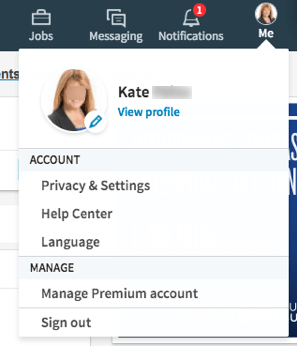
Step 2. Find the Experience Section: Scroll down to the “Experience” area. You can either click the “+” icon directly there or use the “Add profile section” button at the top.
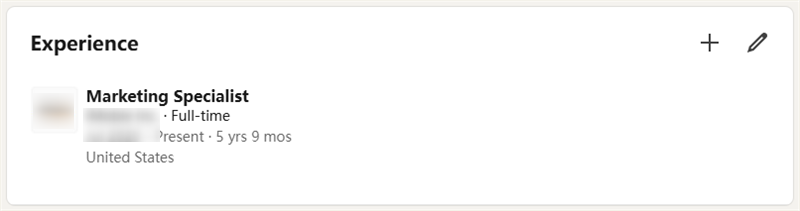
Step 3. Fill in the Details:
- Title: Be specific (e.g., “Software Engineering Intern” rather than just “Intern”).
- Employment Type: Always select “Internship.” This helps the algorithm categorize your career stage.
- Company: Type the name and select it from the dropdown. This links the official company logo to your profile.
Step 4. Media & Links: If you created a presentation, a video, or a public-facing project during your internship, click “Add media” to upload it. This provides “Visual Proof” of your work.
On Mobile (iOS/Android)
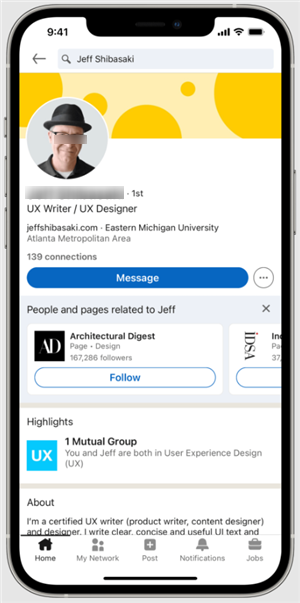
Step 1. Tap your Profile Picture: In the top left corner, tap your avatar, then select “View Profile.”
Step 2. The Floating Action Button: Tap the “+” icon in the Experience section.
Step 3. Toggle “Notify Network”: Before saving, look at the top of the screen. If you want your connections to see a “Congrats” post, leave this ON. If you are adding an old internship or want to keep it private, toggle this OFF.
What to Write in an Internship Description: 3 Optimized Templates
The biggest mistake students make is writing a description that looks like a “To-Do” list. Recruiters don’t want to know what you were supposed to do; they want to know what you achieved.
Template 1: Marketing / Business Intern
[Company Name] | May 2025 – Aug 2025
- Conducted competitor research across 20+ brands to identify gaps in social media strategy, leading to a new content pillar for Q3.
- Helped increase Instagram engagement by 35% by designing 15+ high-performing Reels using Canva and Adobe Spark.
- Assisted with campaign analytics, generating weekly reports for the CMO that tracked a 10% increase in MoM lead generation.
Template 2: Software Engineering / Tech Intern
[Company Name] | June 2025 – August 2025
- Developed and deployed a Python-based automation script that reduced data entry time by 15 hours per week.
- Collaborated with a team of 5 in an Agile environment to debug and resolve 20+ front-end issues using React.js.
- Optimized SQL queries within the internal database, improving dashboard load times by 2 seconds.
Template 3: General Administrative / HR Intern
[Company Name] | Jan 2025 – May 2025
- Streamlined the onboarding process for 10 new hires by creating a digitized “Welcome Guide” using Notion.
- Managed executive scheduling and coordinated 3+ cross-departmental meetings per week involving C-suite leadership.
- Utilized Greenhouse ATS to screen over 200+ resumes, identifying top-tier candidates for the recruitment team.
The Secret Sauce: Action Verbs & Quantified Results
Recruiters and AI tools (like Jobright.ai) scan for specific signals. Always start your bullet points with powerful verbs: Analyzed, Built, Coordinated, Designed, Executed. Whenever possible, add a number. A “20% increase” is more memorable than “an increase.”
Where Should Internships Go on LinkedIn? (The “Section” Debate)
Students often debate whether an unpaid or “informal” internship counts as “Experience.” On Reddit’s r/students, a common question is: “I did a 2-month unpaid internship for a startup. Should it go in Experience or Volunteer?”
The answer is almost always Experience. Here is why:
| Situation | Recommended Section | Why? |
| Paid Internship | Experience | Standard professional work. |
| Unpaid Internship | Experience | Even if you weren’t paid, the work was professional. Don’t bury it in Volunteer. |
| Student Project | Projects | Use this for classroom-based work that had no “Employer.” |
| Volunteer Internship | Volunteer | Only use this if the organization is a non-profit (e.g., Red Cross) and the role was purely altruistic. |
Expert Tip: Using the “Experience” section ensures that when a recruiter filters for “Software Engineer” on LinkedIn Recruiter, your profile appears in the results. If it’s in the “Volunteer” section, it might be filtered out.
Can You Add an Internship Before It Starts?
The “Incoming Intern” post has become a cultural staple on LinkedIn, but is it actually a good idea to add it to your profile experience?
On Reddit’s r/internships, users often ask: “I just signed my offer for Summer 2026. Should I add it now?”.
There are three ways to handle this:
Way 1. The “Incoming” Strategy: Add the position immediately, set the start date for the future, and put “Incoming [Role] Intern” as the title.
- Pro: You start ranking for that company’s keywords immediately.
- Con: Some recruiters find it premature.
Way 2. The “Start Date” Strategy (Recommended): Add the internship on your very first day. This allows you to post a “First Day” photo, which generates significantly more organic reach and engagement.
Way 3. The “Headline Only” Strategy: Don’t add it to the Experience section yet. Instead, update your LinkedIn Headline to say: “Student at [University] | Incoming Summer 2026 Intern at [Company].”
How Internships Improve LinkedIn Recruiter Visibility
LinkedIn is not just a social network; it is a giant database. Recruiters use a specific tool called LinkedIn Recruiter to find candidates. This tool relies heavily on:
- Keywords: If your internship description mentions “SEO,” “Python,” or “Project Management,” you appear in those searches.
- Company Logos: Following a company and having their logo in your Experience section flags you as a “warm lead” to their recruiters.
- Skills: LinkedIn allows you to tag up to 50 skills. Attaching specific skills to your internship experience (e.g., “Market Research” attached to your “Marketing Intern” role) gives those skills more “weight.”
An HR professional recently shared on LinkedIn that:
“When I see a candidate has listed an internship with specific, tagged skills, I spend 3x more time on their profile than on someone who just lists their school.”
How Jobright.ai Helps Optimize Your Profile
Once you’ve added your internship to LinkedIn, the next step is making sure your experience is presented in a way that recruiters and hiring systems can easily understand.
Many students write internship descriptions that sound vague or generic. However, modern recruiting systems often rely on keywords, skills, and job-specific language to identify qualified candidates.
This is where Jobright AI can help.

Jobright’s AI Resume Builder allows you to upload your existing resume and receive instant feedback on how to improve it. The system analyzes your resume content and suggests improvements to make it more competitive for the roles you are applying for. With Jobright.ai, you can:
- Analyze Your Resume With AI. Upload your resume and receive an instant analysis showing where your experience can be improved or clarified.
- Generate an ATS-Friendly Resume. The platform helps create resumes optimized for applicant tracking systems (ATS), increasing the chances that recruiters will actually see your application.
- Tailor Your Resume to Specific Jobs. Jobright’s AI can refine your resume so that your experience and skills better match the requirements listed in real job descriptions.
- Save Time During the Job Application Process. Instead of manually rewriting your resume for every application, AI recommendations help you optimize your resume quickly and apply to more opportunities.
In other words, Jobright helps students transform their internship experience into a clear, job-ready resume that recruiters and hiring systems can understand.
Common Mistakes When Adding Internships
Avoid these three “Profile Killers” to keep your credibility high:
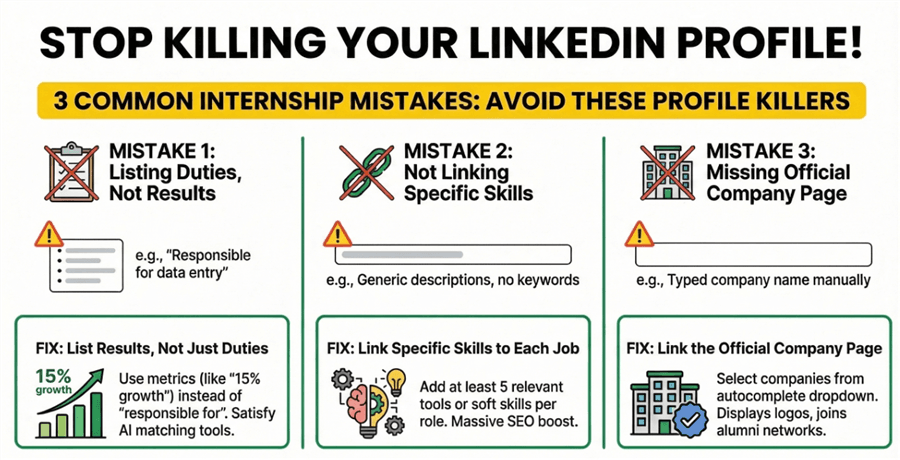
Mistake 1: Listing duties instead of results
- Bad: “Responsible for posting on Twitter.”
- Better: “Curated 3 posts per week for Twitter, resulting in a 15% increase in follower growth over 3 months.”
AI matching tools prioritize results-oriented language.
Mistake 2: Forgetting to add “Skills”
In 2024, LinkedIn introduced a feature where you can link specific skills to each job. If you don’t do this, you are missing out on a massive SEO boost.
Fix: Go to your internship, click “Edit,” and scroll down to “Skills.” Add at least 5 relevant tools or soft skills you used.
Mistake 3: Missing the Company Page
If you type “Google” but don’t click the official Google logo from the list, your profile will show a gray “building” icon instead of the logo.
Fix: Always select the company from the autocomplete dropdown. This links you to the company’s “Alumni” and “Employees” network.
LinkedIn Internship Profile Checklist
Before you hit “Save,” run through this checklist to ensure your profile is 100% optimized for 2026.
- [ ] Title: Does it include your specific role + the word “Intern”?
- [ ] Employment Type: Is it set to “Internship”?
- [ ] Company: Is the official logo showing?
- [ ] Description: Do you have at least 3 bullet points starting with action verbs?
- [ ] Metrics: Is there at least one number or percentage in your description?
- [ ] Skills: Have you tagged at least 5 skills to this specific role?
- [ ] Media: Have you added a link to a project, certificate, or company blog post you wrote?
- [ ] Headline: Did you update your headline to reflect your new status?
Frequently Asked Questions
Q1. Should internships go under work experience?
Yes, absolutely. Recruiters treat internships as professional work experience. Placing them in “Volunteer” or “Projects” makes them harder to find and devalues your hard work.
Q2. How many internships should I list?
List all relevant ones. If you had five internships but only three are related to the career path you want now, you can choose to “un-pin” or simplify the older, irrelevant ones. However, for students, more experience is usually better.
Q3. Can you add an internship without a company page?
Yes. If you interned for a very small local business or a brand-new startup that doesn’t have a LinkedIn page, you can still type their name. You just won’t have a clickable logo. In this case, use the description to briefly explain what the company does.
Q4. Should unpaid internships go on LinkedIn?
Yes. Whether you were paid in cash, college credit, or “experience,” the work you did is what matters to future employers. Follow the same “Experience” format as a paid role.
Q5. Do recruiters really care about internships?
For entry-level roles, internships are the #1 factor recruiters look at. According to data from Jobright.ai, candidates with at least two internships are 70% more likely to get an interview than those with none.
Final Thoughts: Your Profile is Your First Impression
Adding an internship to your LinkedIn profile is more than just a clerical task—it’s a strategic move. By using the right keywords, quantifying your achievements, and leveraging tools like Jobright.ai to ensure your profile matches the industry’s needs, you transform a simple “student job” into a powerful career launchpad.
Ready to see if your LinkedIn profile is recruiter-ready?
Use Jobright.ai to analyze your profile today and get personalized suggestions on how to make your internship experience stand out to top-tier employers.