
How to Use LockedIn AI Step by Step: First-Time Setup to Interview Practice
Table of Contents
Staring blankly at your webcam while an interviewer waits for your answer to “Tell me about a time you failed” is a uniquely terrible feeling. You know the material, but the nerves just take over. That’s exactly why tools like LockedIn AI are flooding the market, promising to fix your interview practice overnight. But let’s be real—most tech just adds another confusing tab to your browser. I’m Dora, and I spent this past week rigorously testing the LockedIn AI setup to see if it actually helps you speak more clearly, or if it’s just noise. If you’re tired of bombing questions you know you could ace on a calmer day, keep reading. I’m going to show you the step-by-step, data-backed way to actually get value out of this tool without losing your mind.
What you need before starting (account, device, interview format)
Before you touch any settings, get three things clear. This saves you time and keeps your practice realistic.
1) Your account + where you’ll use it
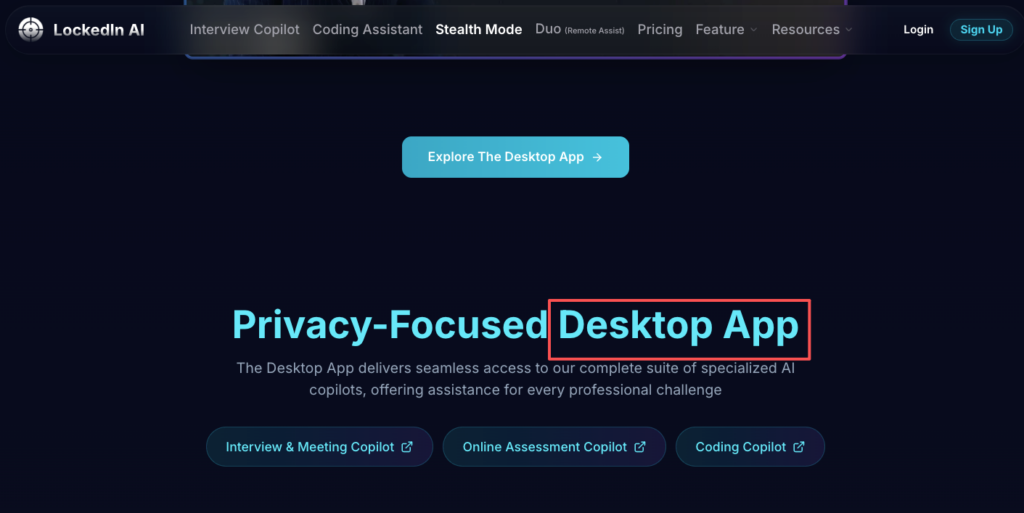
- You’ll need a LockedIn AI account. Start from the official site: LockedIn AI.
- Decide if you’re practicing on desktop (best) or laptop (fine). Phones are usually a weak fit for realistic interview practice.
2) Your device setup (what matters, what doesn’t)
- A stable browser (Chrome tends to be the smoothest for most extensions-style workflows).
- A working mic. Don’t overthink the mic quality, but do test it.
- A quiet-ish space. Not silent. Just “no roommate blender” level.
3) Your interview format
This is the big one.
Ask: What am I preparing for next week?
- Behavioral interview (PM, SWE, Data, UX): “Tell me about yourself,” conflicts, leadership, tradeoffs.
- Technical interview (SWE, Data): algorithms, debugging, system design, SQL, metrics.
- Mixed loop: common for bigger companies.
According to 2025 SHRM Talent Trends research, recruiters are increasingly evaluating candidates on structured communication—not just technical skills. If you practice the wrong format, your conversion rate won’t move. You’ll feel busy, but your results won’t change.
One more note for international candidates: if you need sponsorship, your prep must include a clean, calm explanation of work authorization. Keep it short and consistent. This is part of your value prop, not an apology.
Step 1: Initial setup and permissions (what to avoid)
LockedIn AI setup is where people accidentally create problems. I made a few “oops” clicks at first, so you don’t have to.
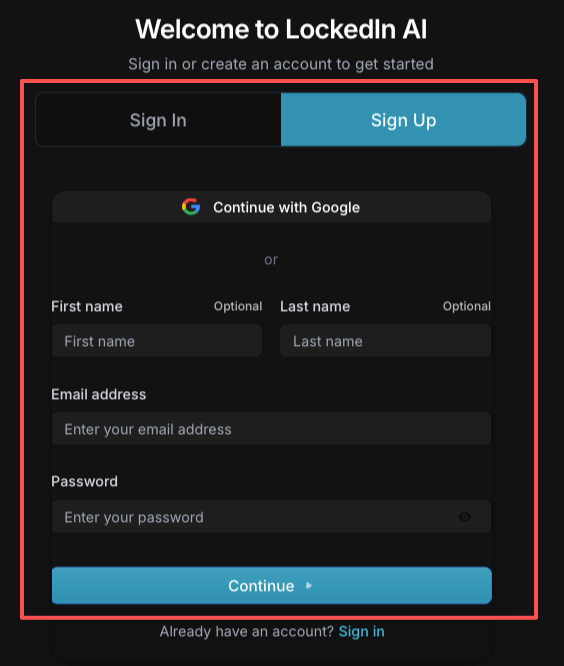
What I allowed (and why)
- Microphone permission: required for live speaking practice. No mic = no realistic coaching.
- Notifications (optional): I kept these off at first. Too distracting.
What I avoided (on purpose)
- Over-sharing access you don’t need. If a permission doesn’t connect to practice quality, skip it.
- Messy audio inputs: I had both my laptop mic and headset available, and the system picked the wrong one. My feedback got worse instantly.
My quick “lockedin ai chrome setup” checklist
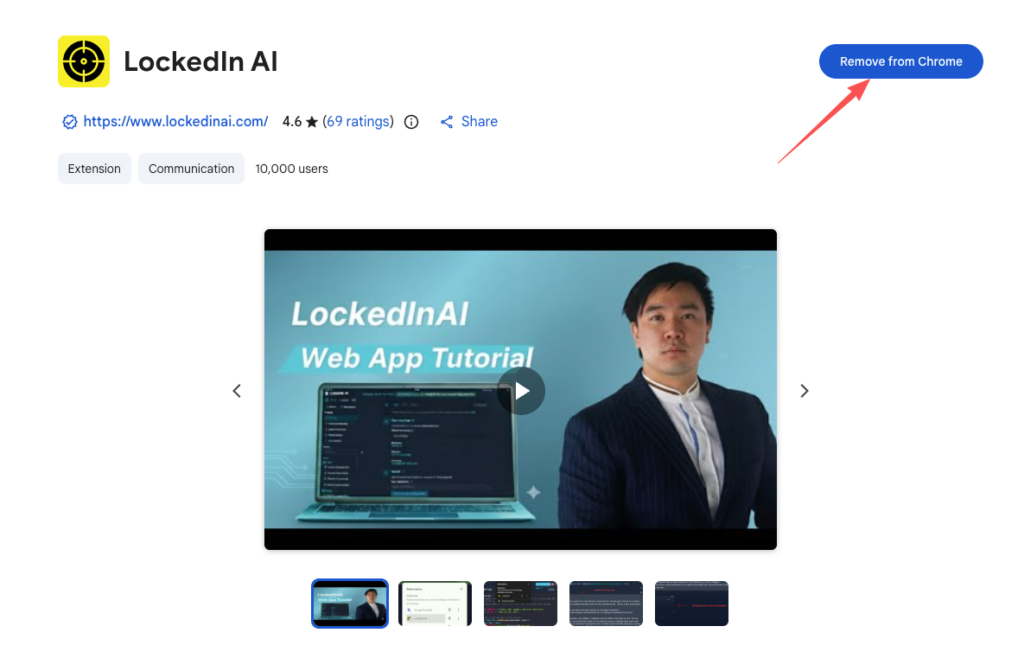
If you’re using Chrome, follow the LockedIn AI Chrome extension installation guide and do this before a session:
- Open Chrome settings → site settings.
- Confirm the correct mic input is selected.
- Close apps that hijack audio (Zoom, Teams, Discord).
- Do a 10-second test recording.
Here’s the harsh truth: if your audio is wrong, the algorithm can’t judge your pacing, clarity, or filler words well. That breaks the mechanism. The feedback might look “smart,” but it won’t be accurate.
And please, don’t treat setup like a one-time thing. If you switch headphones or move locations, re-check. It takes 30 seconds and saves a whole practice session.
Step 2: Choosing interview type (behavioral vs technical)
This is where LockedIn AI interview prep becomes helpful, or just noise.
When I clicked into interview type, I expected a generic menu. But the best value came from matching the practice to the real loop I’m facing.
Behavioral: best for clarity, structure, and confidence
Choose behavioral if you:
- Ramble when you’re nervous.
- Struggle to “sell” impact.
- Freeze on questions like “Why this company?”
Your goal is structure. I use a simple frame:
- Situation (1–2 lines)
- Task (what you owned)
- Action (what you did)
- Result (quantify it)
Quantify is not optional. “Improved performance” is vague. “Reduced API latency from 900ms to 220ms (75%)” is data-backed.
Technical: best for communication under pressure
Choose technical if you:
- Know the basics but explain poorly.
- Jump into coding without a plan.
- Lose points on edge cases.
For technical practice, I focus on keyword match for interview signals:
- Clarify requirements
- State assumptions
- Outline approach
- Complexity
- Test cases
That’s not fluff. It’s optimization. Interviewers score communication patterns, not just the final answer. Recruiters won’t tell you this, but… technical interviews often fail because candidates don’t narrate their thinking. LockedIn AI can push you to narrate, if you pick the right mode.
Step 3: Running your first practice session
For your first LockedIn AI interview practice, don’t aim for a “perfect” run. Aim for clean reps.
My 15-minute first session plan
I did this exact flow to keep it simple:
- Pick one role target (SWE / PM / Data). Don’t mix roles in one session.
- Pick 3 questions only. Not 20. Three.
- Record each answer once, then review.
And yes, I felt awkward on the first recording. That’s normal. Your brain hates hearing your own voice.
What I listened for (metrics, not vibes)
Stop guessing. Let’s look at the data.
I tracked these basic metrics in a notes doc:
- Answer length (aim: 60–120 seconds for many behavioral questions)
- Filler words count (“um,” “like,” “you know”)
- One quantified result per answer
- One clear value prop (what I bring)
A real example (how I rewrote a weak answer)
My first version sounded like: “I worked on a dashboard and stakeholders liked it.”
Second version (better alignment):
“I owned a KPI dashboard for onboarding. I interviewed 6 users, cut redundant charts by 40%, and improved activation tracking. The team reduced time-to-insight from 2 days to same-day, which helped us catch a drop in conversion rate earlier.”
That’s leverage. It’s specific. And it’s easier for an interviewer to score.
One more tough-love note: if you’re practicing for visa-sponsored roles, add a clean 10-second line somewhere in your prep:
- “I’m authorized to work in the U.S. on OPT and will need H-1B sponsorship in the future.”
Short. Calm. Consistent. No spiraling.
Common beginner mistakes (and how to fix them fast)
I see the same mistakes in my consulting work, and I saw them in my own first runs too.
Mistake 1: Doing “mass practice” with no focus
This is the interview version of mass applying into the application black hole.
Fix: pick one skill per day:
- Day 1: structure
- Day 2: quantified results
- Day 3: concise openings
Mistake 2: Chasing the tool instead of the job
People keep tweaking settings instead of improving answers.
Fix: lock your lockedin ai getting started settings, then spend 90% of time on reps.
Mistake 3: Ignoring ATS + resume alignment
Interview practice helps, but your resume still has to pass ATS parsing.
Fix: keep a simple alignment check:
- Job description keywords → mirrored in your resume (truthfully)
- Projects → quantified outcomes
- Titles/skills → consistent wording for keyword match
If your resume doesn’t pass ATS parsing, you won’t even reach the interview. For background on fair hiring practices and employment standards, the U.S. Department of Labor has hiring and employment resources worth skimming.
Mistake 4: Treating AI feedback like a final grade
The debate around AI use in job interviews is real—and worth understanding. An algorithm can’t fully read the room.
Fix: use AI feedback as a mirror, not a judge.
- Keep what improves clarity
- Ignore what makes you sound fake
Mistake 5: No “insider connection” strategy
Tools won’t replace humans.
Fix: set a weekly target:
- 5 warm reach-outs
- 2 recruiter messages
- 1 referral ask
The ROI is higher than sending another 50 applications into silence.
When to stop and switch to prep-only mode
LockedIn AI can be a strong training partner. But you can also overuse it.
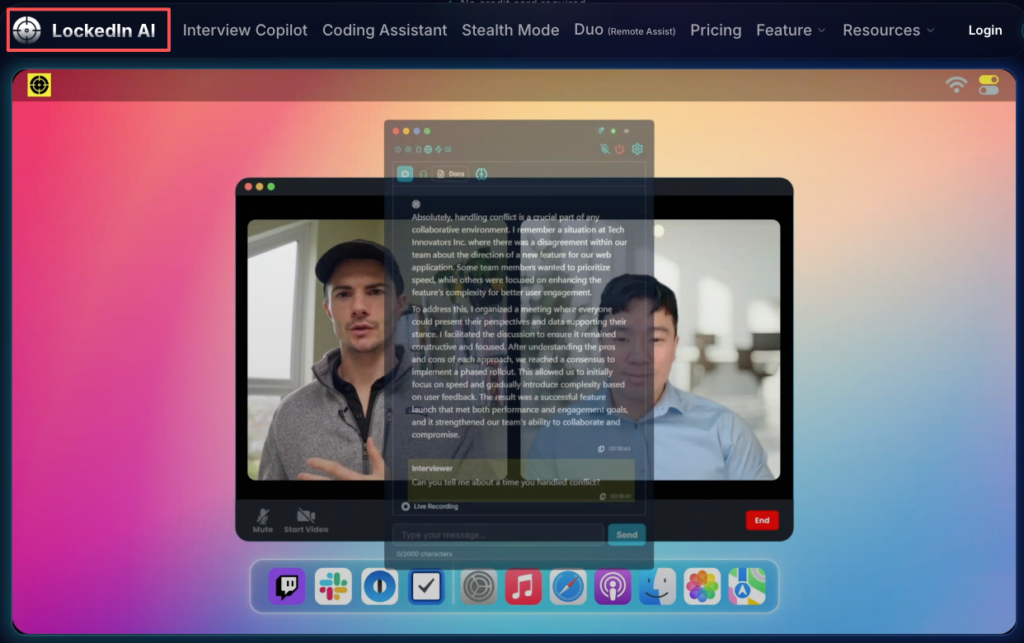
Switch to prep-only mode when:
- You’re memorizing instead of thinking.
- Your answers sound polished but not human.
- You get anxious without the tool.
- Your metrics stop improving (same filler words, same unclear stories).
What does prep-only mode look like?
- Write 6–8 core stories (conflict, failure, leadership, impact).
- Build a one-page “value prop sheet” for your target role.
- Do one mock with a real person each week (friend, mentor, coworker).
Recruiters won’t tell you this, but… the final round is often a trust test. Can they see you working with the team? AI can help you practice, but it can’t replace real human signals.
If you’re like me and you care about practical progress, LockedIn AI is worth trying for structured reps and faster feedback—and it consistently ranks among the best AI interview assistants in 2026. But skip it if you expect it to carry you through interviews without your own prep. The leverage still comes from you.
No AI can pass the interview for you, just like no platform can guarantee a job overnight. But if you want a smarter way to source roles worth your preparation, see how Jobright.ai can streamline your search.
Frequently Asked Questions about How to Use LockedIn AI
How to use LockedIn AI to improve interview answers quickly?
To use LockedIn AI fast, start with a realistic setup (desktop/laptop, working mic), pick the correct interview type (behavioral vs technical), then run short “clean reps.” Do a 15-minute session: one target role, three questions, record once each, and review for structure and metrics.
What permissions should I allow during LockedIn AI setup (and what should I avoid)?
Allow microphone permission so LockedIn AI can analyze pacing, clarity, and filler words. Keep notifications optional (many people turn them off to reduce distraction). Avoid over-sharing permissions that don’t improve practice quality. Also prevent messy audio inputs—choose one mic source so feedback isn’t distorted or inaccurate.
How do I choose behavioral vs technical mode in LockedIn AI interview practice?
Choose behavioral mode if you ramble, struggle to sell impact, or freeze on “Why this company?” Use a simple structure like Situation–Task–Action–Result, with at least one quantified result. Choose technical mode if you explain poorly under pressure—practice clarifying requirements, stating assumptions, outlining an approach, complexity, and test cases.
What should I track during a LockedIn AI practice session to measure progress?
Track metrics, not vibes: answer length (often 60–120 seconds for behavioral), filler-word count (“um,” “like”), one quantified result per answer, and one clear value proposition. If your audio input is wrong, these metrics become unreliable, so do a quick mic test before each session—especially after switching devices or locations.
What are the most common beginner mistakes when learning how to use LockedIn AI?
Common mistakes include mass practice with no focus, tweaking tool settings instead of doing reps, ignoring ATS/resume alignment, and treating AI feedback like a final grade. Fix it by choosing one skill per day (structure, quantified outcomes, concise openings), locking your setup, mirroring job keywords truthfully on your resume, and using feedback as a mirror—not a judge.