
LockedIn AI Chrome Extension Setup: Install, Permissions, and Common Issues
Table of Contents
You install the LockedIn AI Chrome extension five minutes before an interview… and suddenly Chrome wants permissions, popups appear, and nothing behaves the way the tutorial promised. If your heart rate spikes just reading that, you’re exactly who this LockedIn AI Chrome Extension Setup guide is for.
I’ve tested interview tools in messy real conditions, not clean demo videos, and setup friction is where most people quietly sabotage themselves. Extensions don’t fail because they’re useless. They fail because nobody walks through install, permissions, and edge cases the way an anxious candidate actually experiences them. So this guide focuses on what happens on your screen, what breaks, and how to fix it before it matters.
What the extension can/can’t do (scope + limits)
LockedIn AI‘s pitch is simple: on-screen help while you’re interviewing, fast, context-aware support so you don’t freeze. In practice, the “value prop” depends on what kind of interview you’re in.
What it can do (when it’s working well):
- Help you structure answers quickly. Think STAR stories for behavioral questions or a clean framework for product questions (tradeoffs, metrics, constraints). When my brain wanted to ramble, the extension nudged me back into a simple outline.
- Improve keyword match in your spoken answers. Not ATS keyword match, this is human keyword match. If the role keeps repeating “ownership,” “latency,” “A/B test,” or “stakeholder alignment,” a tool can remind you to mirror that language.
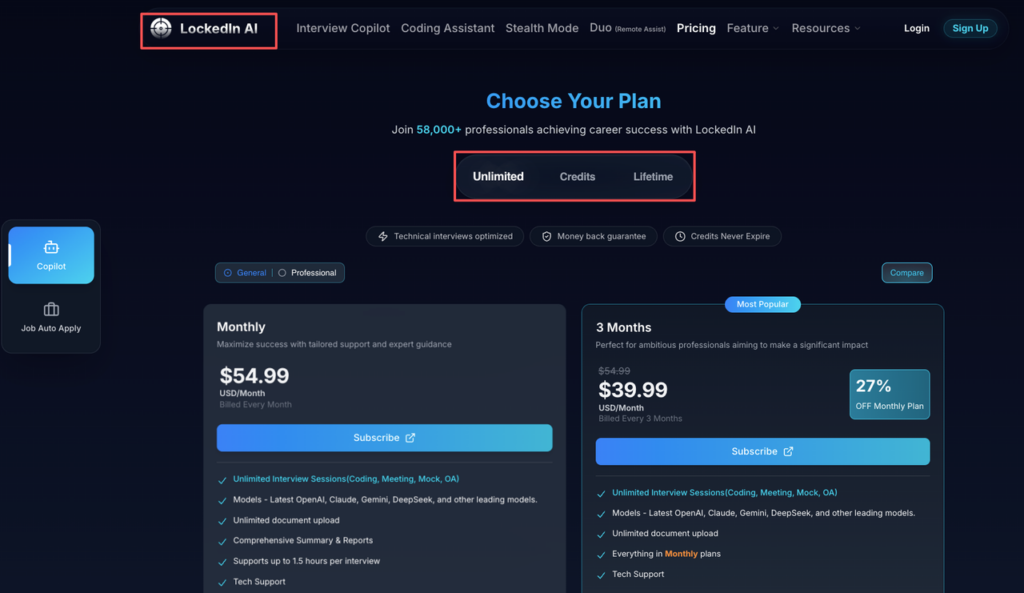
- Reduce blank-mind moments. That’s the real ROI: fewer “uhh…” gaps and fewer missed talking points. You can evaluate the cost-to-benefit ratio by checking the LockedIn AI pricing page.
What it can’t do (and this matters):
- It can’t invent experience you don’t have. If you didn’t quantify impact (“reduced p95 latency by 18%,” “grew conversion rate by 6%”), it can’t make that true. Recruiters won’t tell you this, but… fluffy answers fail even when they sound confident.
- It can’t guarantee fairness or access across platforms. Some assessment tools detect overlays, screen capture, or unusual browser behavior. As reported in discussions about AI cheating and fraud in job interviews, the industry is increasingly wary of how these tools are used.
- It can’t replace prep. If your interview prep is zero, the extension becomes a crutch. And crutches show.
If you’re expecting it to be a cheat code, stop. If you want a structured helper that keeps you calm and consistent, that’s the right expectation.
For deeper interview mastery and real prep beyond any single extension, try JobRight.ai’s 24/7 AI career copilot.
Install + pin + permission checklist
I tested this the same way I set up any interview tool: install it early, then run a dry run before the real call. Nothing spikes anxiety like permission popups mid-interview.
My quick setup checklist
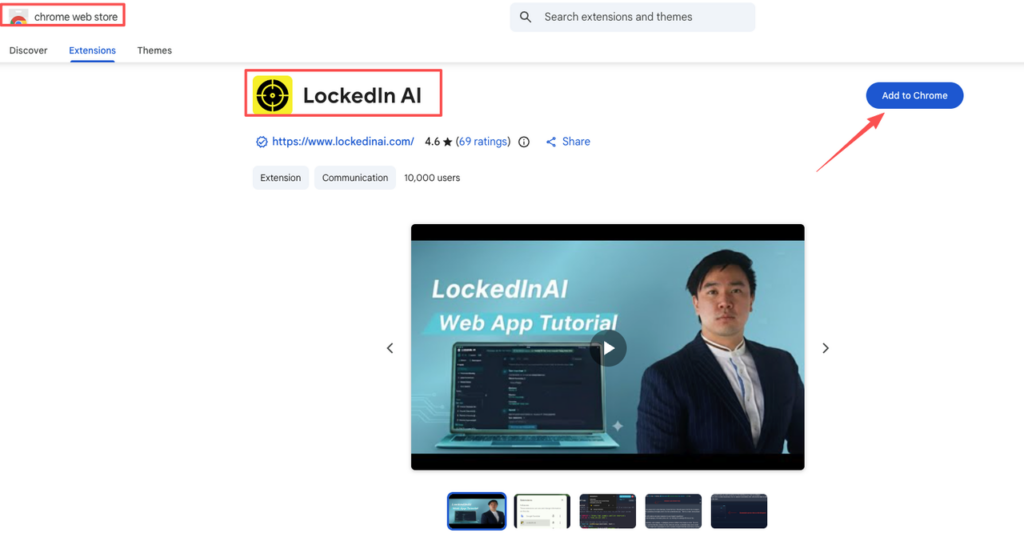
- Install from the official source. Start at the official LockedIn AI website so you don’t end up with a lookalike extension.
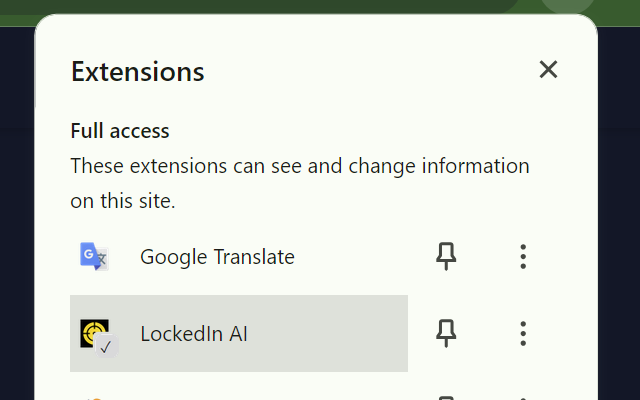
- Pin it in Chrome. Open the Extensions puzzle icon → find LockedIn AI → click the pin. You want one-click access.
- Check permissions one by one. Don’t just click “Allow” on autopilot.
- If it asks to “Read and change data on websites,” pause and decide where you’ll enable it.
- Prefer “On specific sites” over “On all sites,” if Chrome offers that choice.
- Sign in with a clean browser profile (recommended). I like a separate Chrome profile just for job search. Fewer random extensions = fewer conflicts.
- Test on a fake meeting. Create a Google Meet/Zoom with yourself and confirm:
- The extension opens
- Text appears where you expect
- Nothing blocks screen share controls
Stop guessing. Let’s look at the data: if your setup takes more than 10 minutes, something’s off—permissions, a conflicting extension, or a corporate-managed browser. You can follow the official documentation to install LockedIn AI Chrome extension easily and troubleshoot these common hurdles.
On-screen question workflow (capture → context → output)
This is the core flow I used, and it maps to how most “live assist” tools work:
1) Capture: get the question cleanly
In a real interview, questions are messy. People ramble. They stack questions. Or they ask one thing and mean another. So my first move was always: capture the question in a clean sentence. If the tool supports copying text from the screen, great. If not, I typed a short version myself. Example:
- Messy: “Tell me about a time you had conflict… also how do you prioritize… and what do you do when deadlines change?”
- Clean capture: “Behavioral: conflict with stakeholder + prioritization under changing deadlines.”
2) Context: add the 2–3 details the algorithm can’t guess
Here’s where most people fail. They ask for help with zero context, then complain the output is generic. I added:
- Role + level: SWE II, Data Analyst, PM, etc.
- Company style (if known): Amazon-style leadership principles, startup speed, regulated finance, and so on.
- My real metrics: 2–3 quantified bullets I’m willing to repeat.
Why? Because the extension’s “algorithm” can only optimize based on what you feed it. Better input = better output.
3) Output: pick a structure, not a script
When LockedIn AI gave me an answer, I didn’t read it word-for-word. That’s risky and it sounds fake. Instead, I used it like a teleprompter for structure:
- Behavioral: Situation → Task → Action → Result → Reflection
- Product: Goal → Users → Constraints → Options → Tradeoff → Metric
- Data: Hypothesis → Data needed → Method → Risks → Decision
Recruiters won’t tell you this, but… the best answers feel owned. Use the tool to keep your story tight, not to borrow someone else’s voice.
One more note for international candidates: if you’re asked about work authorization, don’t improvise. Prepare one clean line (OPT/CPT timeline, H-1B needs) and keep it calm. It is crucial to stay informed about the latest USCIS guidelines for working in the United States to ensure your answers are legally accurate. The tool can help you stay consistent, but you should decide the exact wording ahead of time.
Fixes (no text, lag, blocked assessments, audio issues)
When people say “the extension didn’t work,” it’s usually one of four problems. Here’s what I’d troubleshoot, in this order.
No text showing up
- Refresh the page (simple but often works).
- Toggle the extension off/on for that site.
- Check site permissions in Chrome → Extension details → “Site access.”
- Try Incognito (only if enabled) to rule out conflicts.
If it still shows nothing, assume the page is blocking overlays or the content is inside a protected frame (common in assessments).
Lag or delayed output Lag usually comes from one of these:
- Too many tabs + heavy meeting software
- Weak Wi‑Fi
- Competing extensions (ad blockers, privacy blockers) Fix:
- Close extra tabs.
- Turn off other extensions during interviews.
- If you can, use Ethernet or sit closer to the router.
Blocked assessments / tools not loading Here’s the harsh truth: if an assessment platform breaks when the extension is on, don’t force it. Action steps:
- Turn the extension off and reload.
- If the platform still fails, switch to a clean Chrome profile.
- If you’re on a company-managed device, don’t fight admin policies.
Audio issues (mic, speaker, “it can’t hear me”) Even when a tool isn’t “listening,” browsers can get weird when multiple apps request audio. Checklist:
- Chrome settings → Site settings → Microphone: confirm the right mic.
- Meeting app settings: confirm the same mic is selected.
- Unplug Bluetooth devices and retry (Bluetooth is a frequent culprit).
Stop guessing. Let’s look at the data: if audio breaks only when the extension is enabled, that’s a signal to disable it for that platform and keep your interview stable. For more user experiences on stability, you can browse LockedIn AI reviews on Trustpilot.
Security hygiene (devices, accounts, screen sharing)
If you’re going to use any interview helper, treat it like handling sensitive work data. Because sometimes you are.
My basic security rules
- Use a separate Chrome profile for job search. Less cross-contamination with personal logins.
- Don’t screen share your entire desktop if you can avoid it. Share a single tab/window. This reduces accidental exposure.
- Assume anything on screen can be captured. That includes candidate IDs, emails, internal dashboards (if you’re interviewing while still employed), and private notes.
- Avoid using it on a work-issued laptop unless your company policy allows it. Corporate monitoring + unknown extensions = risk.
- Use strong account security (unique password + MFA). If the tool has MFA, turn it on.
For tech folks: think threat model. The extension sits close to your browser. Browsers touch everything: email, calendars, docs, ATS portals, visa paperwork. Keep the blast radius small.
And a quick visa-related note: your immigration status details are sensitive. Don’t paste passport numbers, SEVIS IDs, or private legal notes into any tool unless you’re sure how data is stored and you’re okay with that risk.
Red flags: when to stop using it (policy cues)
This section is not about fear. It’s about protecting your offers. Recruiters won’t tell you this, but… hiring teams care less about what tool you used and more about whether you broke a rule. If you get flagged, you may never get a clean appeal.
Stop using it if you see any of these cues
- The platform says “no assistance,” “no external tools,” “no overlays,” or similar language.
- The assessment uses proctoring (webcam monitoring, locked browser, screen recording). If you’re being proctored, treat it like an exam.
- You notice warnings like “suspicious activity detected” or forced reloads.
- The company’s interview email or portal explicitly states a policy against AI tools.
My practical rule If it’s a live conversation (phone screen, hiring manager chat) and no policy forbids it, a light structure helper may be fine. If it’s a graded assessment, don’t risk it. Your conversion rate from “maybe pass” to “auto reject” is not worth it.
If you’re like me and you care about calm delivery and clean structure, the LockedIn AI Chrome extension can be worth testing in a practice setting first. But skip it if you expect it to bypass policy, outperform real prep, or protect you from getting flagged. Your strategy should build leverage, not create new failure points.
Frequently Asked Questions
What is the LockedIn AI Chrome extension used for during interviews?
The LockedIn AI Chrome extension is meant to provide on-screen, context-aware help during interviews so you don’t freeze. It can nudge you into clear frameworks (like STAR), remind you to mirror role-specific keywords, and reduce blank-mind gaps—but it’s not a substitute for real prep.
How do I install and set up the LockedIn AI Chrome extension before an interview?
Install the extension from the official Chrome Web Store page, pin it in Chrome for one-click access, and review permissions carefully. Prefer “on specific sites” instead of “on all sites.” Use a separate Chrome profile for job hunting, then do a dry run in Meet/Zoom to avoid popups mid-call.
How should I use the LockedIn AI Chrome extension without sounding scripted?
Use LockedIn AI for structure, not a word-for-word script. First, capture the question in a clean sentence. Then add context (role level, company style, 2–3 real metrics). Finally, speak in your own voice while following an outline like Situation–Task–Action–Result–Reflection.
Why isn’t the LockedIn AI Chrome extension showing text, or why is it lagging?
If the extension shows no text, refresh, toggle it off/on for that site, and check Chrome “Site access” permissions. If it lags, close heavy tabs, disable competing extensions (ad/privacy blockers), and improve connection (Ethernet if possible). You can find more technical tips on the LockedIn AI support site.
Can using the LockedIn AI Chrome extension get me flagged in assessments or proctored interviews?
Yes. If a platform says “no assistance,” uses proctoring (locked browser, webcam monitoring, screen recording), or displays “suspicious activity” warnings, stop using the extension. As discussed in the article from The Atlantic, companies are becoming more vigilant about AI-assisted fraud. Even if your intent is practice, overlays or unusual browser behavior can be treated as a rule violation.
Recommended Reads